
Install MyINC Social and create your account. I-install ang MyINC Social at gumawa ng iyong account. A step-by-step guide. Isang gabay na sunod-sunod ang mga hakbang.
MyINC Social is a private community app for verified Iglesia Ni Cristo members. This page walks you through installing the app on your Android phone and creating your account — from start to approval. Ang MyINC Social ay isang pribadong community app para sa mga beripikadong miyembro ng Iglesia Ni Cristo. Ipinapakita sa pahinang ito kung paano i-install ang app sa iyong Android phone at gumawa ng iyong account — mula simula hanggang sa maaprubahan.
New here? Watch the short video below first, then follow the steps. The whole sign-up takes about 5 minutes. Bago ka rito? Panoorin muna ang maikling video sa ibaba, pagkatapos sundin ang mga hakbang. Aabutin lamang ng humigit-kumulang 5 minuto ang buong pag-sign up.
Only install MyINC Social from Google Play or links on MyINCSocial.com. Do not use third-party APK sites. I-install lamang ang MyINC Social mula sa Google Play o sa mga link mula sa MyINCSocial.com. Huwag gumamit ng mga third-party APK site.
Get MyINC Social on your phone. Kunin ang MyINC Social sa iyong phone.
You have two ways to install the app: May dalawang paraan para i-install ang app:
Watch how to sign up. Panoorin kung paano mag-sign up.
This short video shows the full sign-up flow inside the app — from opening MyINC Social for the first time to submitting your account for approval. Ipinapakita ng maikling video na ito ang buong proseso ng pag-sign up sa loob ng app — mula sa unang pagbukas hanggang sa pagsusumite ng account para sa approval.
Open on YouTube Buksan sa YouTubeCreate your account in 6 steps. Gumawa ng iyong account sa 6 na hakbang.
After installing the app, open MyINC Social and follow these steps. The app guides you through each one — this page is a reference if you get stuck. Pagkatapos ma-install ang app, buksan ang MyINC Social at sundin ang mga hakbang. Gagabayan ka ng app sa bawat isa — ang pahinang ito ay gabay kung sakaling malito ka.
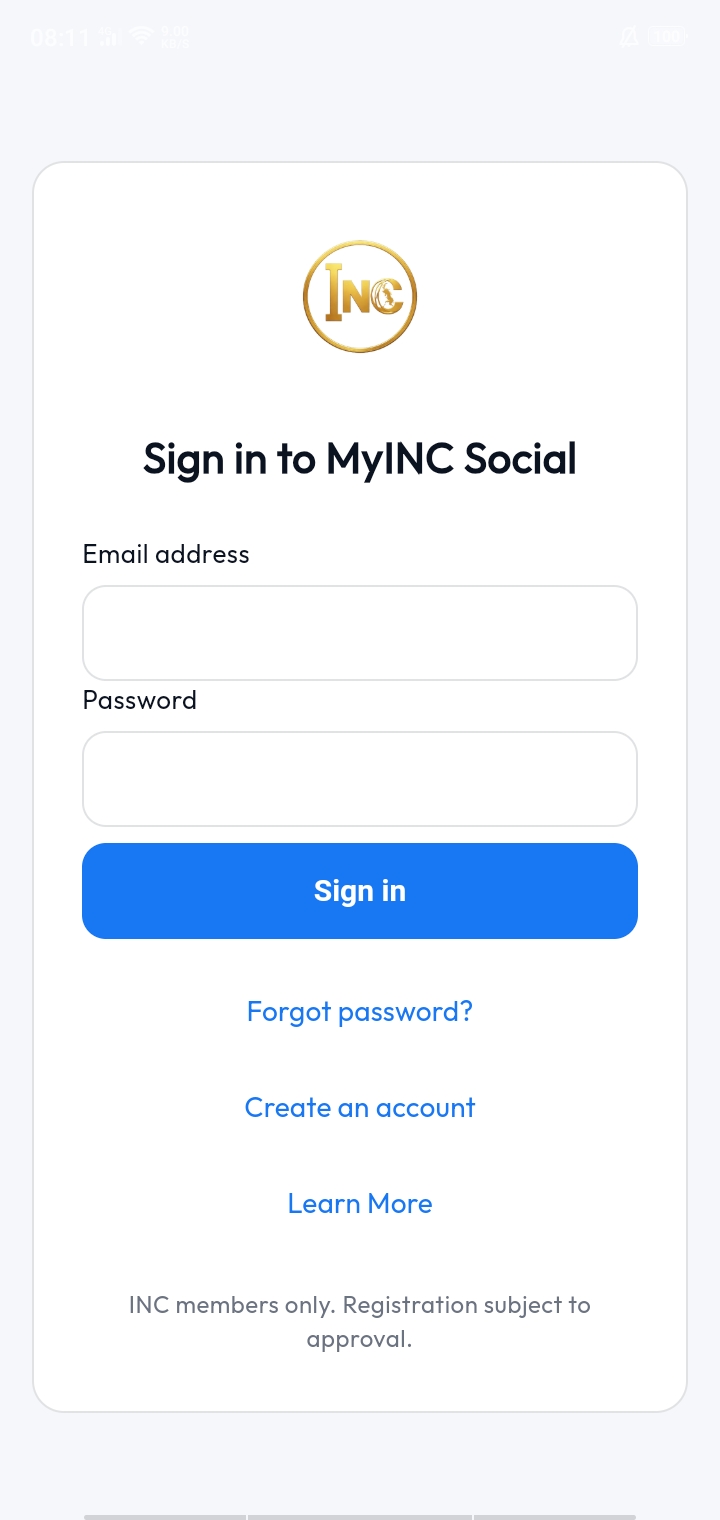
Open MyINC Social and tap "Create Account". Buksan ang MyINC Social at pindutin ang "Create Account".
When you open the app for the first time, you'll see the sign-in screen. If you already have an account, tap Log In. If you're a new member, tap Create Account. Kapag unang binuksan ang app, makikita mo ang sign-in screen. Kung may account ka na, pindutin ang Log In. Kung bago ka, pindutin ang Create Account.
Important Mahalagang Paalala
MyINC Social is for Iglesia Ni Cristo members only. Non-members cannot create an account. Ang MyINC Social ay para lamang sa mga miyembro ng Iglesia Ni Cristo. Hindi maaaring gumawa ng account ang mga hindi miyembro.
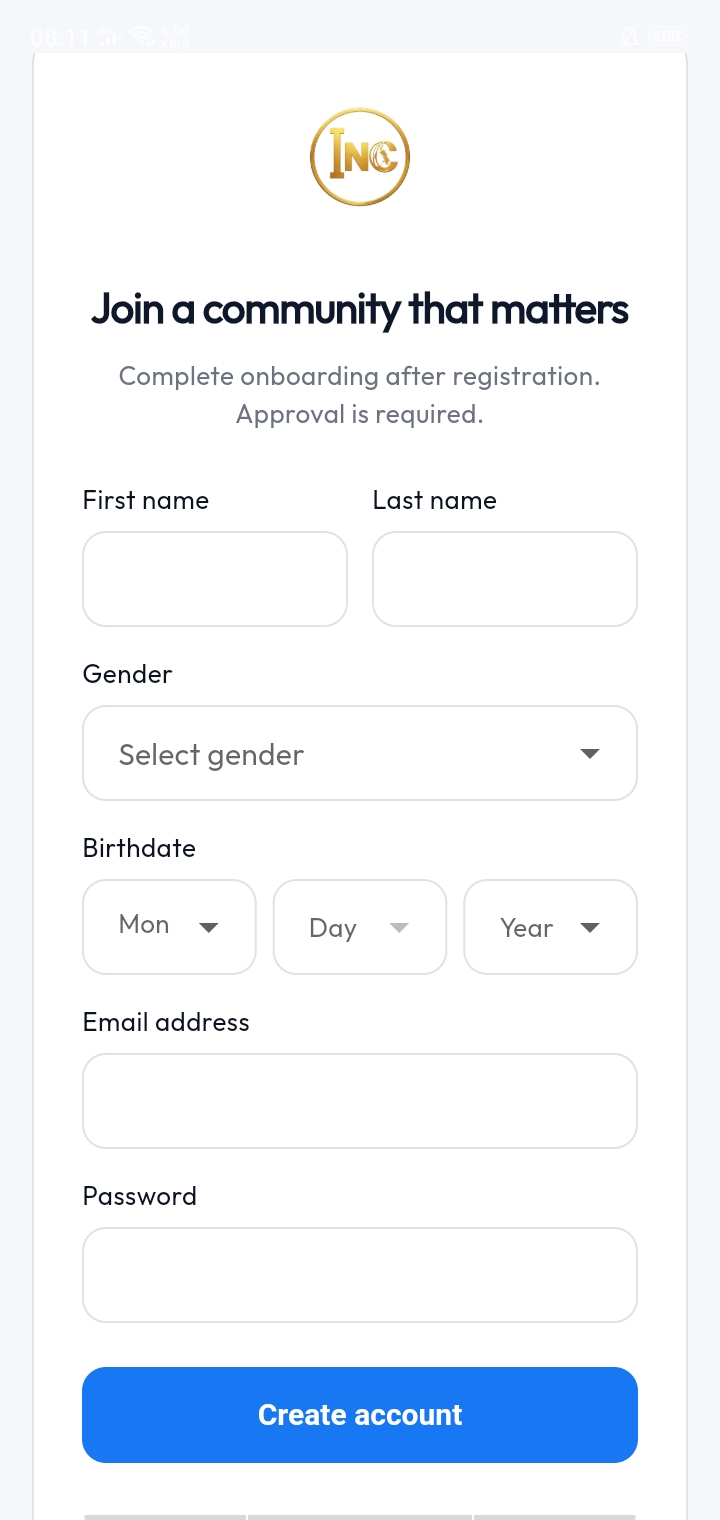
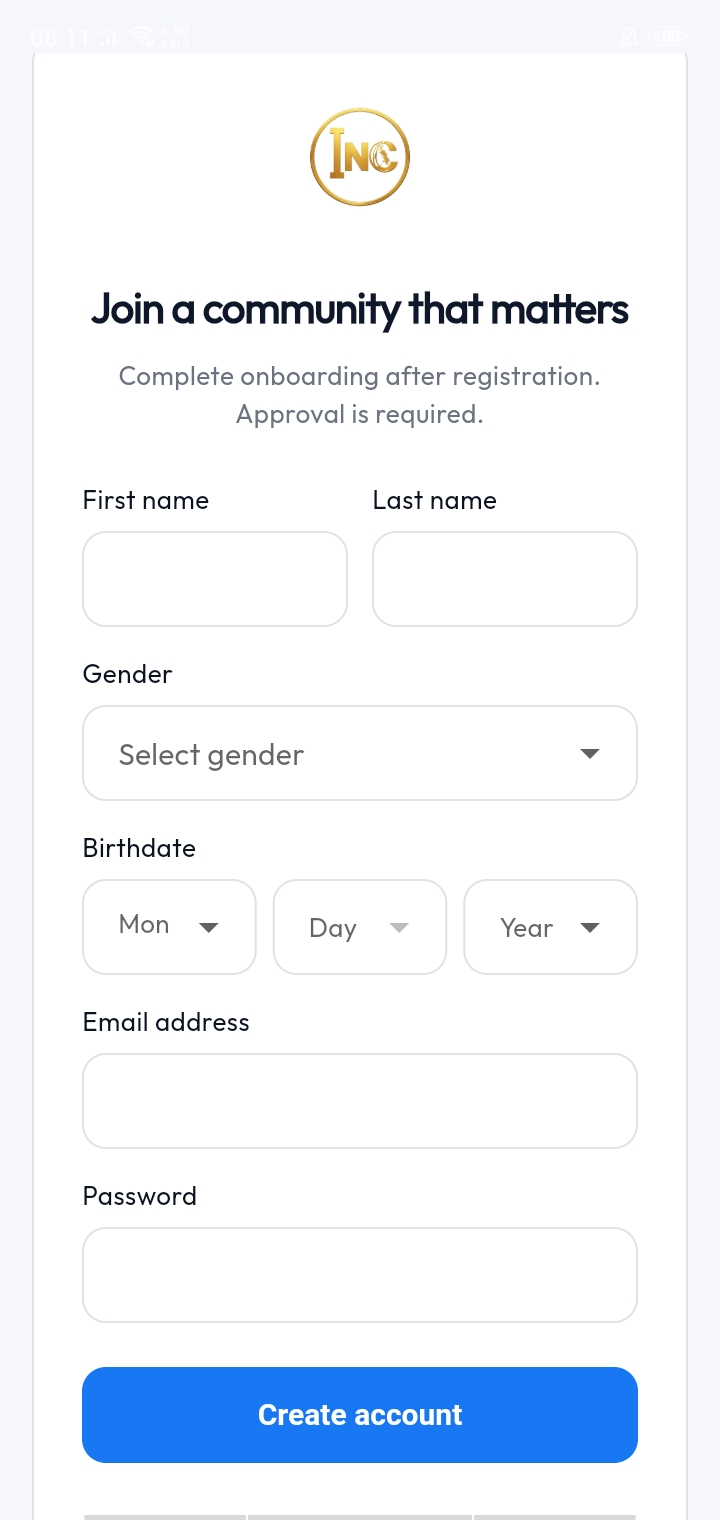
Enter your name, email, and password. Ilagay ang iyong pangalan, email, at password.
Fill in: Punan ang sumusunod:
- First namePangalan
- Last nameApelyido
- GenderKasarian
- Birthdate (month, day, year)Petsa ng kapanganakan (buwan, araw, taon)
- Email addressEmail address
- PasswordPassword
Tap Create Account when you're done. You'll go straight to the next step — onboarding. Pindutin ang Create Account kapag tapos ka na. Dadalhin ka sa susunod na hakbang — onboarding.
Tip Tip
Use a real email address you can access. You'll use it to log in later. Gumamit ng totoong email na maaari mong ma-access. Kakailanganin mo ito sa pag-login.
Link your account to your local congregation. I-link ang iyong account sa iyong lokal na kongregasyon.
This is the most important step. Your congregation is who approves your account, so the selection must be exact. Ito ang pinakamahalagang hakbang. Ang iyong kongregasyon ang mag-aapruba ng iyong account, kaya dapat eksakto ang pagpili.
- Country — Philippines is selected by default. Change it only if you live elsewhere. Bansa — Pilipinas ang default. Palitan lamang kung nasa ibang bansa ka.
- Region — tap the field and start typing your region. Pick from the list that appears. Rehiyon — pindutin at simulan mag-type. Pumili mula sa lalabas na listahan.
- District — only opens after you pick a region. Type to search. Distrito — lalabas lamang pagkatapos pumili ng rehiyon. I-type para maghanap.
- Local Congregation — only opens after you pick a district. Start typing your congregation name and select it from the list. Lokal na Kongregasyon — lalabas pagkatapos pumili ng distrito. I-type ang pangalan at piliin sa listahan.
You must select from the list Dapat mula sa listahan ang pipiliin
You cannot type a region, district, or congregation that isn't in the list. If yours doesn't appear, double-check your spelling or contact support. Hindi maaaring manu-manong ilagay kung wala sa listahan. Kung wala ang iyong kongregasyon, suriin ang spelling o makipag-ugnayan sa support.
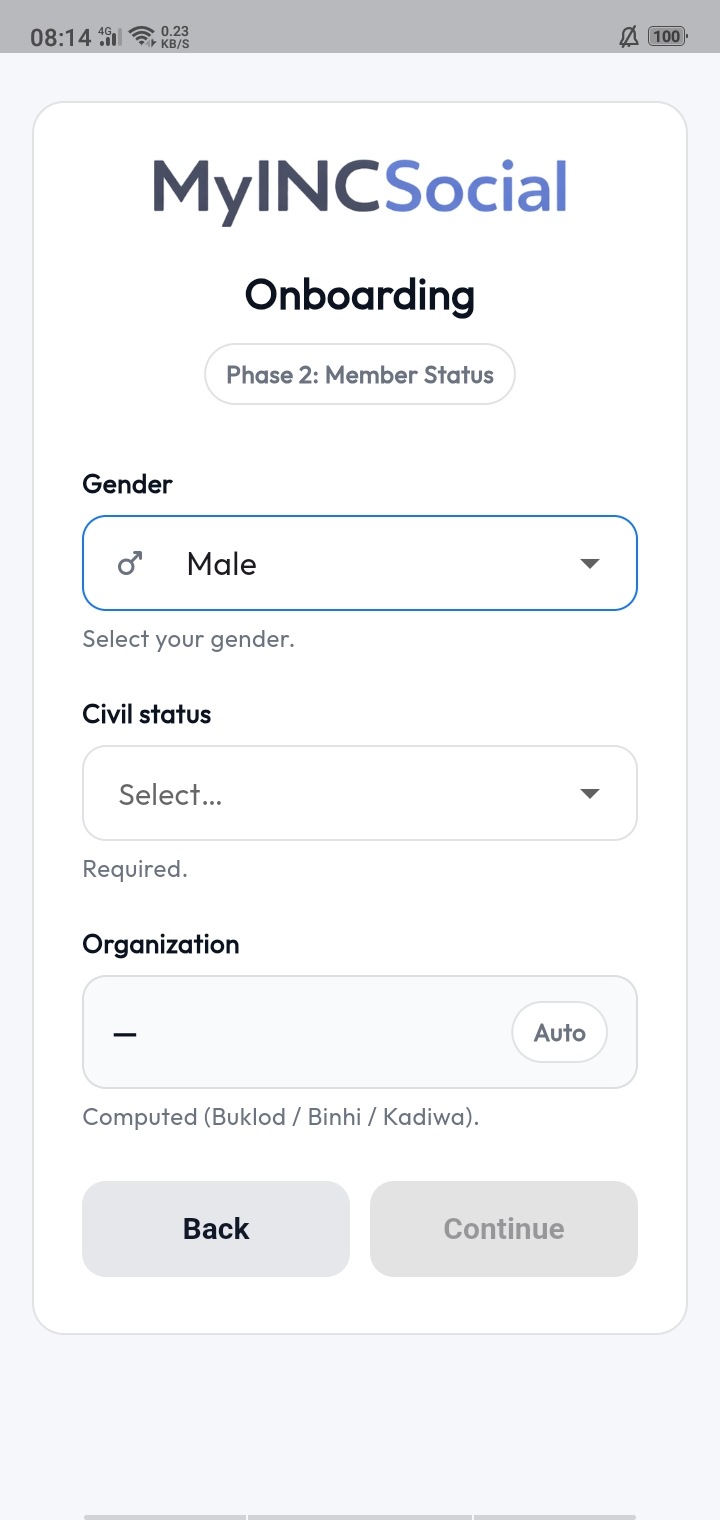
Select your civil status. Piliin ang iyong civil status.
Choose one: Pumili ng isa:
- SingleSingle
- In a relationshipMay karelasyon
- MarriedKasal
- WidowedBiyudo/Biyuda
The app automatically assigns your Christian Family Organization based on your status and age. You don't choose it manually. Awtomatikong itatalaga ng app ang iyong Christian Family Organization batay sa iyong edad at status. Hindi mo ito pipiliin nang manu-mano.
- Buklod — married members Buklod — para sa mga kasal
- KADIWA — single or widowed members aged 18 and above KADIWA — single o biyudo/biyuda na 18 pataas
- Binhi — baptized members aged 13 to 17 Binhi — binyagang miyembro na edad 13–17
Upload a clear profile photo. Mag-upload ng malinaw na profile photo.
Tap Select Photo. You can take a new photo with your camera or choose one from your phone's gallery. After selecting, you'll see a preview. Pindutin ang Select Photo. Maaari kang kumuha ng bagong larawan o pumili mula sa gallery. Pagkatapos pumili, makikita mo ang preview.
Why this matters Bakit mahalaga ito
Your congregation approver may not recognize your name, but they will recognize your face. A clear photo helps your account get approved faster. Maaaring hindi makilala ang iyong pangalan, ngunit makikilala ang iyong mukha. Nakakatulong ito para mas mabilis maaprubahan ang iyong account.
- Use a clear photo of your faceMalinaw na mukha
- Good lighting, no filtersMaayos ang ilaw, walang filter
- Don't use a group photo or cartoon avatarHuwag group photo o cartoon

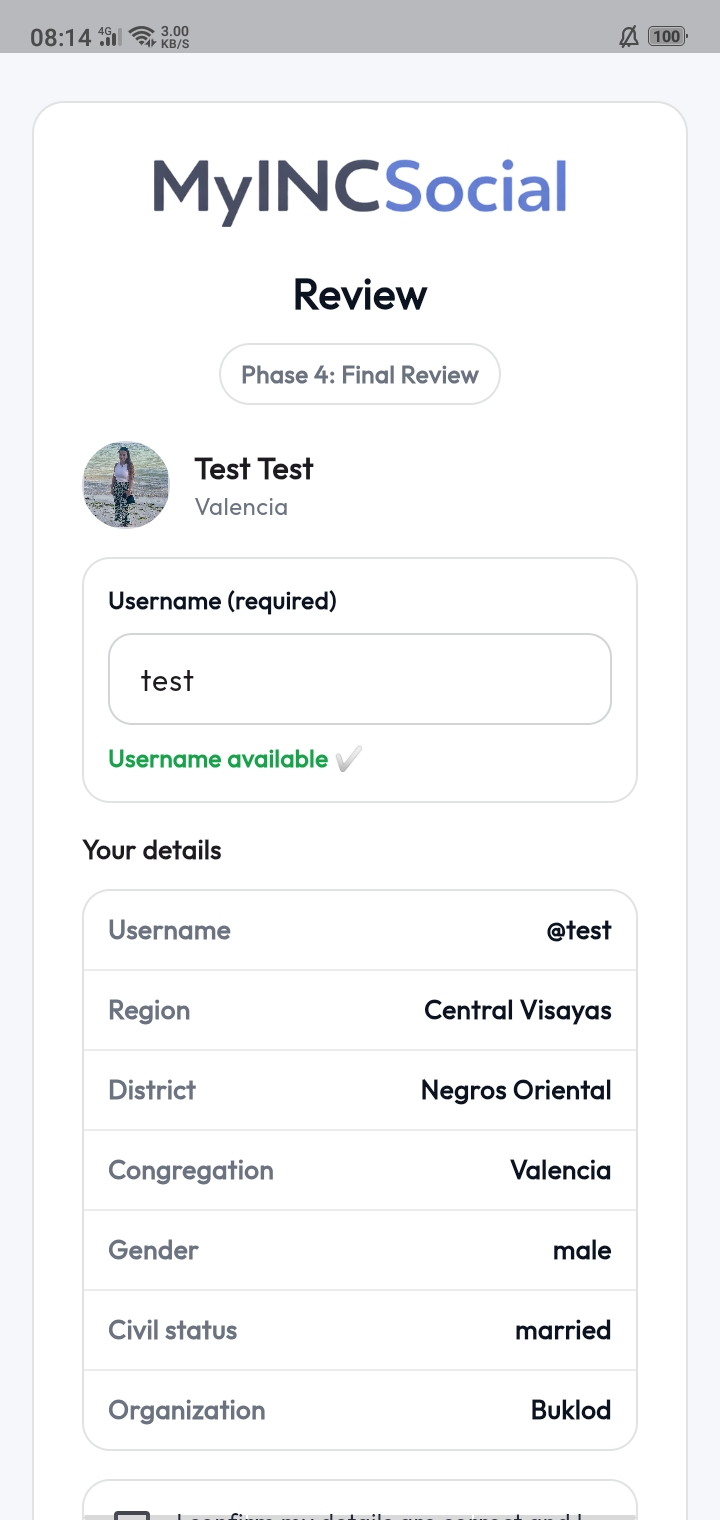
Pick a username and submit for approval. Pumili ng username at isumite para sa approval.
Choose a username. This becomes your permanent identifier inside the app. Ang username ang magiging permanenteng pagkakakilanlan mo sa app.
- 3 to 20 characters3 hanggang 20 na karakter
- Lowercase letters only (a–z)Maliit na letra lamang (a–z)
- Numbers allowed (0–9)Puwede ang numero (0–9)
- Underscore allowed (_)Puwede ang underscore (_)
- No spaces, no capital letters, no special charactersWalang space, capital letter, o special characters
As you type, the app checks if the username is available. If it's already taken, try a different one. Habang nagta-type, chine-check ng app kung available ang username. Kung kuha na, subukan ang iba.
- Review your details — name, congregation, organization, usernameI-review ang iyong detalye — pangalan, kongregasyon, organization, username
- Tick the box confirming your details are correctI-check ang kahon para kumpirmahin na tama ang iyong detalye
- Tick the box agreeing to the Privacy Policy and Terms of ServiceSumang-ayon sa Privacy Policy at Terms of Service
Tap Submit for Approval. Your account is now in review. Pindutin ang Submit for Approval. Naghihintay na ng review ang iyong account.
Username is permanent Babala — Permanente ang username
You cannot change your username after approval. Choose carefully. Hindi na maaaring baguhin ang username pagkatapos maaprubahan. Mag-isip nang mabuti.
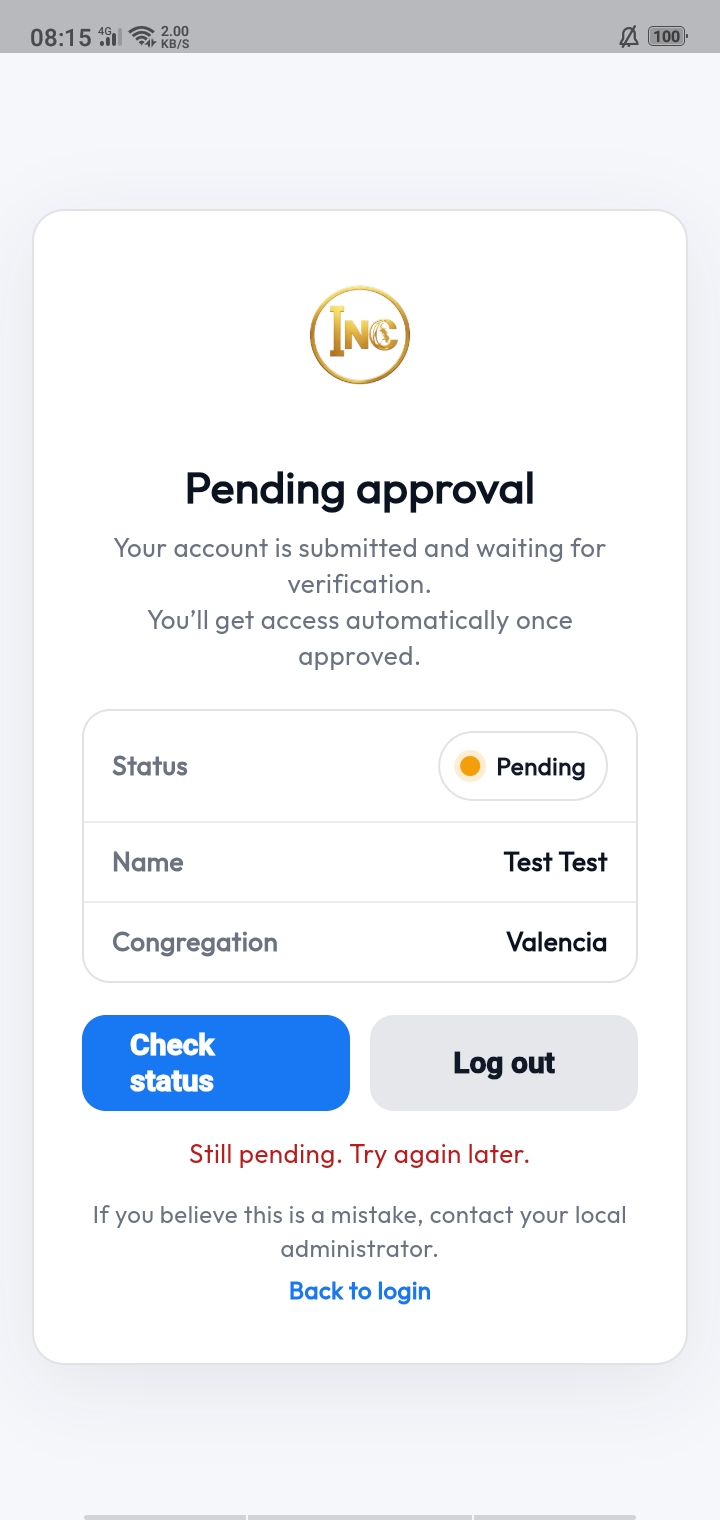
Your account is now waiting for approval. Naghihintay na ng approval ang iyong account.
After you submit, you'll see the Pending Approval screen. This is normal. Your account has been sent to your local congregation's approver for review. Makikita mo ang Pending Approval screen. Ito ay normal. Ipapadala ang iyong account sa approver ng iyong lokal na kongregasyon para sa review.
- You cannot use the app yet — this is expectedHindi pa magagamit ang app — normal lang ito
- You can tap "Check Status" to refreshPindutin ang "Check Status" para i-refresh
- You can log out and come back laterMaaari kang mag-log out at bumalik mamaya
- You'll get a notificationMakakatanggap ka ng notification
- On your next login, you'll have full access to the appSa susunod na login, may full access ka na sa app
How long does approval take? Gaano katagal ang approval?
Approval times depend on your congregation's approver. Most accounts are reviewed within a few days. If you've been waiting longer, contact your local congregation. Depende ito sa approver ng iyong kongregasyon. Karaniwan ay ilang araw lamang. Kung matagal ka nang naghihintay, makipag-ugnayan sa iyong lokal na kongregasyon.
Common issues and what to do. Karaniwang problema at solusyon.
I can't find my congregation in the list Hindi makita ang aking kongregasyon
Try a shorter search — type just the first 3 or 4 letters. If your congregation still doesn't appear, contact support using the links below. Subukan ang mas maikling search — i-type lamang ang unang 3 o 4 na letra. Kung wala pa rin, makipag-ugnayan sa support.
My username is rejected Na-reject ang aking username
Check that you're using only lowercase letters, numbers, and underscores. No spaces, no capital letters, no symbols. Try a different username if yours is already taken. Siguraduhing lowercase letters, numbers, at underscore lamang ang gamit. Walang space, capital, o symbols. Subukan ang ibang username kung kuha na.
I can't upload my photo Hindi makapag-upload ng larawan
Check your internet connection and try again. If it keeps failing, restart the app and re-select the photo. I-check ang iyong internet connection at subukan muli. Kung hindi pa rin gumagana, i-restart ang app at piliin ulit ang larawan.
It's been days and I'm still pending Matagal na ang approval
Approval is handled by your local congregation, not by MyINC Social directly. Contact your congregation officers to follow up. Ang approval ay hawak ng iyong lokal na kongregasyon, hindi ng MyINC Social. Makipag-ugnayan sa officers ng inyong kongregasyon para mag-follow up.
Install only from official sources. Mag-install lamang mula sa opisyal na sources.
- Google Play Store — search MyINC SocialGoogle Play Store — hanapin ang MyINC Social
- Links from MyINCSocial.comMga link mula sa MyINCSocial.com
Never install MyINC Social from APK sites, file-sharing apps, or links sent through unofficial channels. Fake versions can steal your data. Huwag mag-install ng MyINC Social mula sa APK sites, file-sharing apps, o hindi opisyal na link. Maaaring magnakaw ang mga pekeng bersyon ng iyong data.
Official support channels. Mga opisyal na support channels.
If you get stuck during install or sign-up, use one of these official channels. Kung naipit sa pag-install o pag-sign up, gamitin ang isa sa mga opisyal na channels na ito.
Ready to install MyINC Social? Handa ka na bang i-install ang MyINC Social? Start now. Simulan na ngayon.
Tap the button below to download the app from Google Play. Come back to this page if you need help during sign-up. Pindutin ang button sa ibaba para i-download ang app mula sa Google Play. Bumalik sa pahinang ito kung kailangan ng tulong habang nag-sign up.
For Iglesia Ni Cristo members only. Install only from official sources. Para lamang sa mga miyembro ng Iglesia Ni Cristo. Mag-install lamang mula sa opisyal na sources.